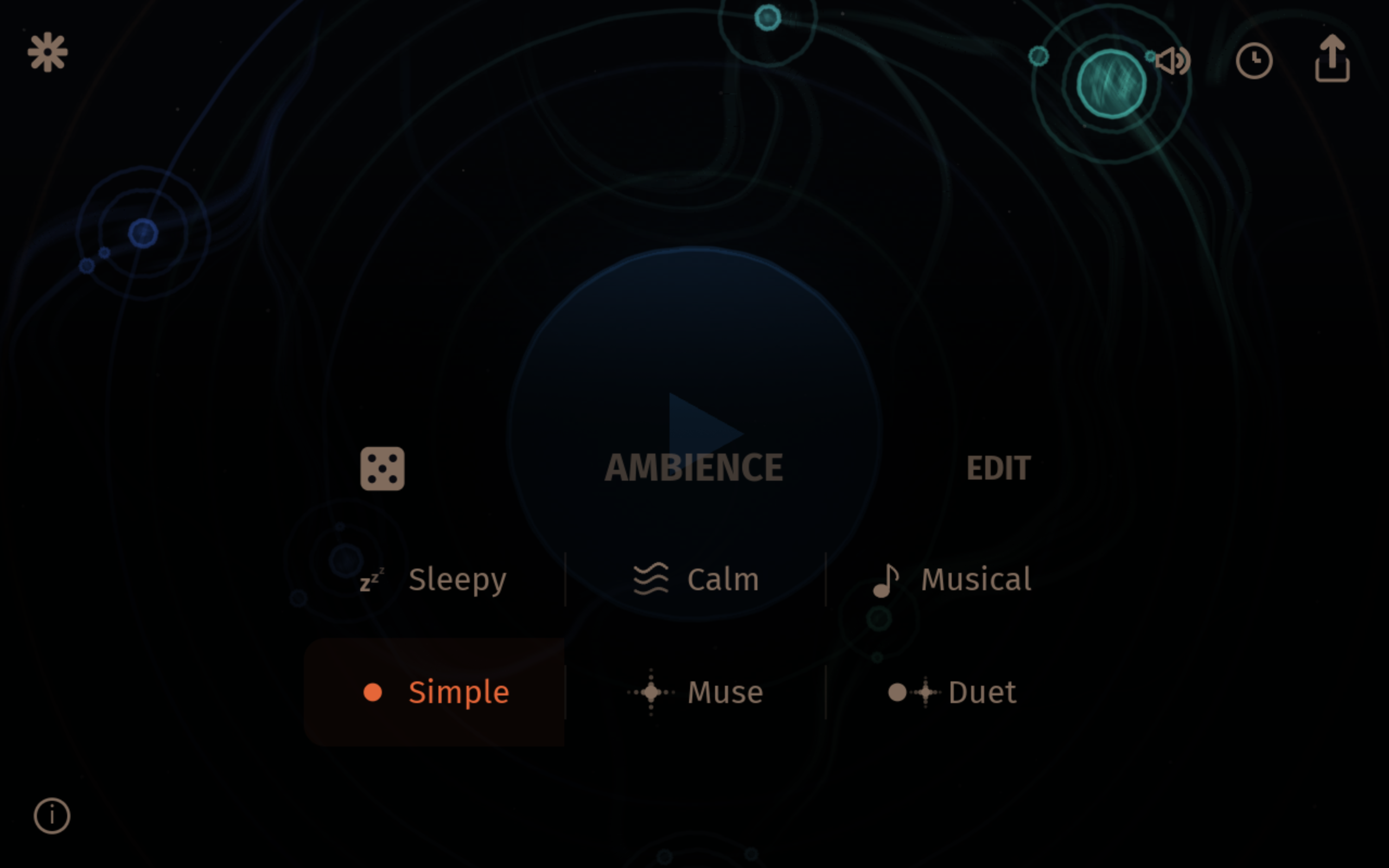
Orbit View and Navigation

Orbiter's web and standalone apps have two views: the Orbit view for ambient listening and the Instruments view for hands-on sound design.

Orbit View

The Orbit view is what you see when you first open Orbiter. It shows a planetary visualisation with orbiting planets around a central sun. This is a minimal, meditative entry point with no text or controls visible.

  • Play — tap the sun at the centre of the screen to start playback
  • Explore — tap anywhere outside the sun to reveal a bottom bar, then tap "Explore" to enter the Instruments view
  • Settings — tap the settings icon (top-left) to open Audio and MIDI settings
  • Volume — tap the volume icon (top-right) to adjust the master volume
  • Share — tap the share icon (top-right) to copy a shareable URL

The Orbit view is designed for ambient listening. Once playback starts, the planets orbit and the sound evolves on its own. When tempo sync is active (MIDI Clock, Ableton Link, or internal clock sending), the current BPM is shown next to the settings icon.

Instruments View

The Instruments view overlays controls onto the planetary backdrop. Here you can:

  • Switch between the Handpan, Gong, and Sound Bowl
  • Adjust each instrument's sound parameters (brightness, reverb, decay, volume, and more)
  • Choose from factory presets for each instrument
  • Select scales and tuning
  • Control the generative sequencer
  • Open Audio and MIDI settings from the settings icon in the toolbar
  • Set a sleep timer
  • Choose a scene preset (Sleepy, Calm, or Melodic)

Tap the close button to return to the Orbit view at any time. Your settings are preserved.